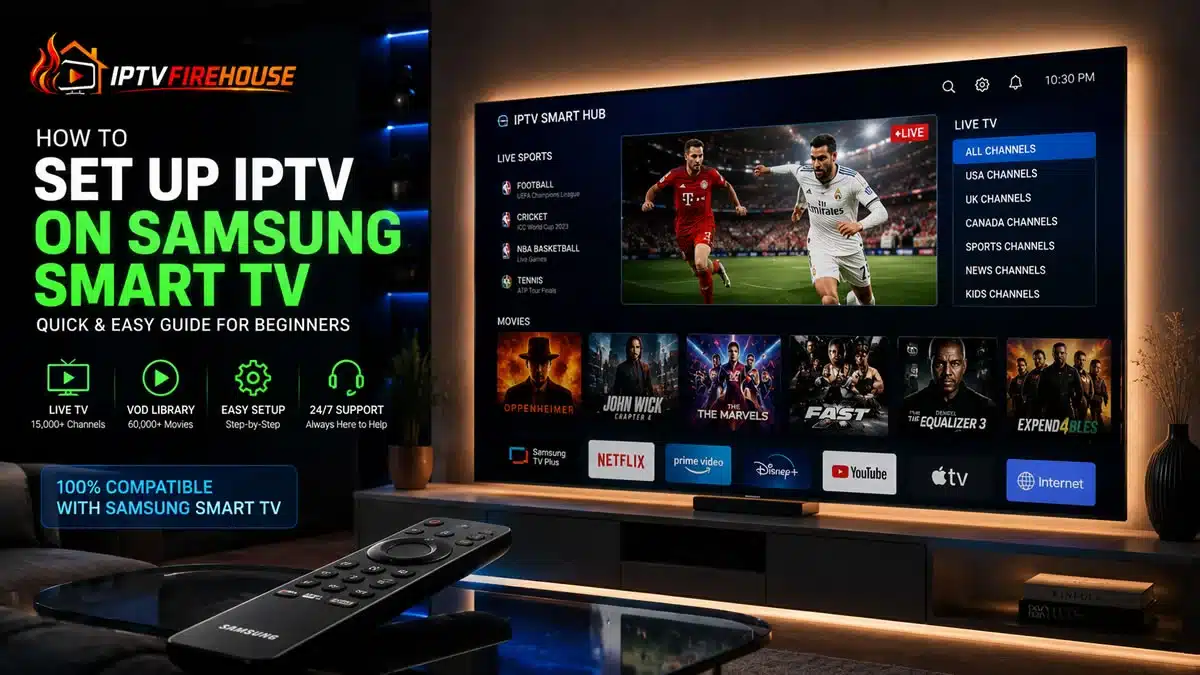
Setting up Internet Protocol Television (IPTV) directly on a Samsung Smart TV allows you to stream live channels, local networks, sports broadcasts, and Video-on-Demand (VOD) libraries without attaching external streaming sticks or set-top boxes. Because Samsung Smart TVs run on Tizen OS rather than Android TV, the installation process relies on native apps available inside the official Samsung App Store.
This comprehensive guide details the exact setup workflows, supported player applications, network optimization steps, and credential management needed to configure IPTV on Tizen OS cleanly.
Technical Overview: How IPTV Functions on Tizen OS
Unlike traditional cable broadcasts that deliver channels through coaxial cables, IPTV uses Internet Protocol (IP) networks to deliver video data packets over your home broadband connection.
When you open an IPTV player application on your Samsung Smart TV, the app communicates with your provider’s server via Xtream Codes API or an M3U playlist URL. The server authenticates your account credentials and streams compressed digital video packets (HLS or MPEG-TS) directly to your TV’s built-in video decoder for real-time, high-definition playback.
Prerequisites & System Requirements
Before installing an IPTV player on your Samsung TV, ensure your device and home network satisfy these requirements:
Hardware & Operating System Specs
- Operating System: Samsung Tizen OS (2017 models or newer recommended for optimal app support).
- Storage Space: At least 200 MB of available internal storage for player installation and EPG cache.
- Display Output: Supports HD, Full HD, and 4K UHD rendering depending on your television model.
Bandwidth & Internet Speed Thresholds
| Stream Quality | Minimum Download Speed | Recommended Connection |
| Standard Definition (SD) | 5 Mbps | Wi-Fi (2.4 GHz) or Ethernet |
| High Definition (1080p HD) | 15 Mbps to 20 Mbps | Wi-Fi (5 GHz) |
| Ultra HD / 4K UHD | 25 Mbps to 50 Mbps | Direct Ethernet Cable Connection |
Method 1: Installing IPTV via Samsung App Store (Native Tizen Apps)
The most direct and secure way to set up IPTV on a Samsung Smart TV is by downloading a dedicated media player directly from the built-in Samsung App Store.
Step-by-Step Installation Steps
- Power On & Connect: Turn on your Samsung Smart TV and confirm it is connected to a stable Wi-Fi or Ethernet network.
- Access Samsung Apps: Press the Home button on your Samsung Smart Remote, scroll left to the Apps icon, and select it.
- Search for a Supported Player: Click the Search icon (magnifying glass) at the top right and enter the name of a compatible player application:
- IPTV Smarters Pro (or Smarters Player Lite)
- IBO Player
- Smart IPTV (SIPTV)
- NET IPTV
- Download and Open: Select the official application from the search results, click Install, and launch the app once the download completes.
- Authenticate Credentials: Choose Login with Xtream Codes API, then type in the Server URL, Username, and Password provided in your subscription email.
Top 3 IPTV Players for Samsung Smart TV (Tizen OS Comparison)
Because Tizen OS is a proprietary operating system, app selection differs from Android TV. Below is a comparison of the top-performing player applications on Samsung TVs:
| Player Application | Primary Strengths | Activation Type | Ideal User Profile |
| IPTV Smarters Pro | Clean dashboard, VOD categorization, master search, zero extra app cost | Free | Beginners wanting an intuitive UI |
| IBO Player | Ultra-fast channel loading, customizable EPG, smooth 4K stream rendering | 7-Day Trial (One-time fee) | Power users seeking speed & stability |
| Smart IPTV (SIPTV) | Lightweight footprint, MAC-address remote playlist upload system | 7-Day Trial (One-time fee) | Users preferring traditional TV layouts |
Step-by-Step Setup Using MAC Address Portal (IBO Player / Smart IPTV)
Some Samsung player applications (like IBO Player or Smart IPTV) use a MAC Address activation portal rather than on-screen login forms.
- Note the Device MAC Address: Open the installed app (e.g., IBO Player) on your Samsung TV. The home screen will display your TV’s unique MAC Address and Key.
- Visit the App Portal: Open a browser on your smartphone or computer and navigate to the player’s official management website (e.g.,
[iboplayer.com/manage](https://iboplayer.com/manage)orsiptv.app/mylist). - Upload Your Credentials: Enter your TV’s MAC Address, then paste your M3U Playlist URL or Xtream Codes API details into the respective fields.
- Reload the Application: Click Save or Send on the web portal, then restart the app on your Samsung Smart TV to fetch live channel categories and EPG data.
Network Optimization & Fixing Buffering on Samsung TVs
If you encounter audio delays, buffering, or app freezes while streaming on Tizen OS, apply these practical network adjustments:
1. Update DNS Settings to Public Resolvers
Default ISP DNS routing can cause latency and throttling during live broadcasts.
- Go to Settings > General > Network > Network Status on your Samsung TV.
- Select IP Settings, change DNS Setting from Get Automatically to Enter Manually.
- Set Primary DNS to
1.1.1.1(Cloudflare) or8.8.8.8(Google).
2. Clear App Cache and Reset Network
- Navigate to Settings > Support > Device Care > Manage Storage.
- Select your IPTV app, click View Details, and choose Clear Cache.
- Restart your home internet router to refresh IP allocations.
Related Setup Guides & Internal Resources
To explore multi-device options or review regional streaming configurations, check out our companion guides:
- Follow step-by-step sideloading workflows in our How to Install IPTV on Android TV Guide.
- Configure Fire OS hardware using our IPTV Firestick Setup Guide.
- Explore affordable North American plans in our Cheap IPTV USA Guide.
- View international streaming setups in the IPTV Australia Guide.
Frequently Asked Questions
Can I install TiviMate directly on a Samsung Smart TV?
No. TiviMate is designed exclusively for Android TV and Fire OS devices. On Samsung Smart TVs (Tizen OS), use native alternatives like IPTV Smarters Pro, IBO Player, or Smart IPTV.
Why is an IPTV app missing from my Samsung App Store?
Samsung App Store availability varies by TV model year and geographic region. If an app does not appear, change your Samsung TV’s Smart Hub location region in device settings or connect an external streaming device like a Firestick.
Is an Ethernet cable better than Wi-Fi for IPTV on Samsung TV?
Yes. Using a direct Ethernet cable provides a constant, unthrottled connection that prevents wireless signal drops during high-bitrate 4K live sports streams.
Summary
Setting up IPTV on a Samsung Smart TV provides immediate access to live television networks, PPV sports, and extensive movie libraries directly through Tizen OS. By installing native players like IPTV Smarters Pro or IBO Player and optimizing your network DNS settings, you can enjoy stable, high-definition streaming on your home screen without extra hardware.