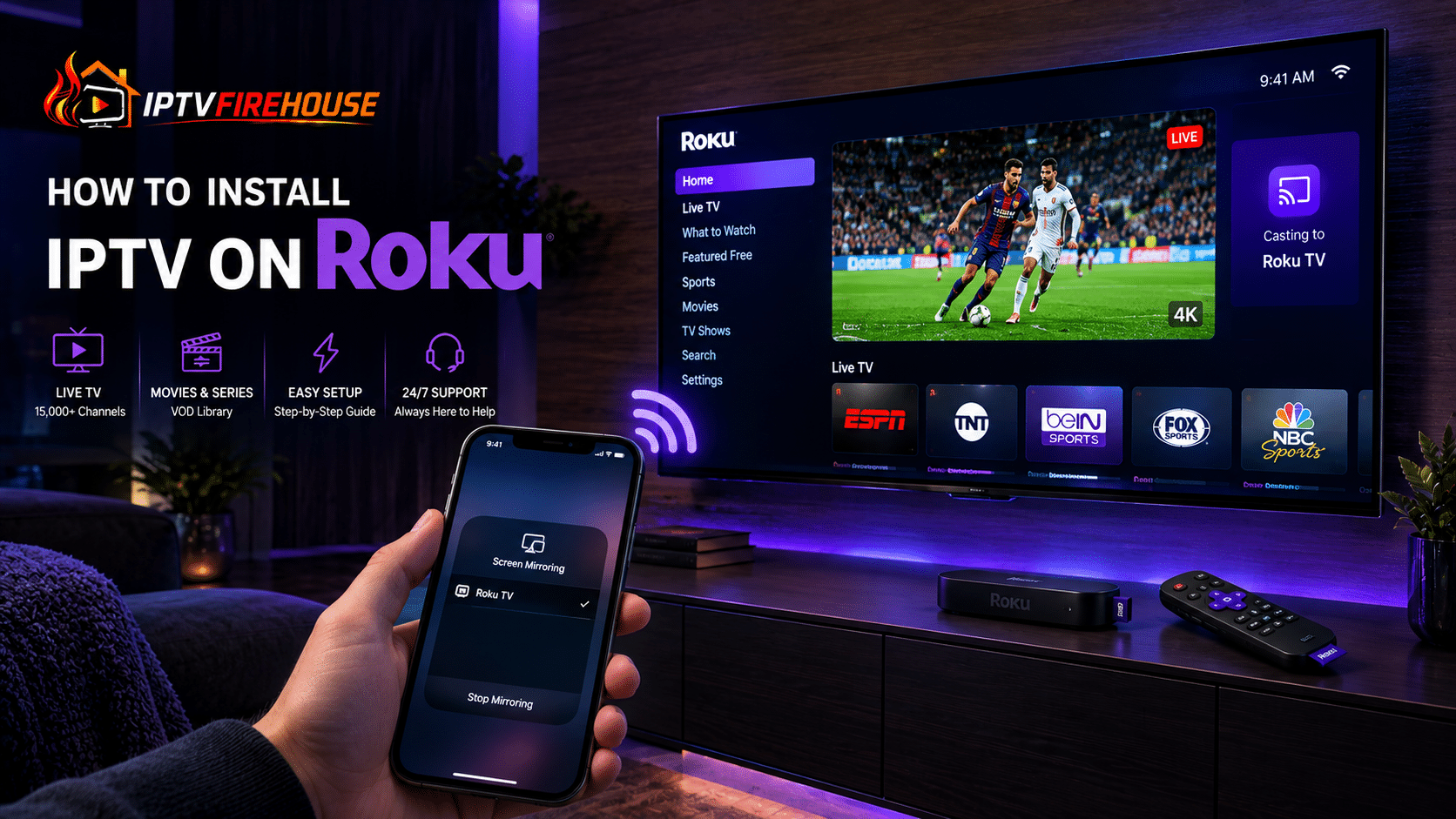
Setting up Internet Protocol Television (IPTV) on a Roku device requires a different approach than on Android TV, Firestick, or Windows devices. Because Roku operates on a closed, proprietary Linux-based operating system (Roku OS), it lacks native support for standard .apk files, Google Play Store apps, or third-party sideloading mechanisms. Furthermore, Roku actively removes unverified M3U media players from the official Roku Channel Store to uphold strict store policies.
Despite these system constraints, you can stream live television networks, sporting events, and Video-on-Demand (VOD) catalogs on your Roku TV or streaming stick. This comprehensive guide outlines the technical reasons behind Roku OS restrictions, step-by-step casting/mirroring workarounds, alternative app methods, and network optimization techniques for buffer-free playback.
Technical Overview: Why IPTV Is Different on Roku OS
Understanding how Roku OS manages media streams explains why conventional installation methods do not apply:
- Closed Ecosystem: Roku OS uses BrightScript, a specialized programming language designed strictly for sandboxed Roku channels. Standard IPTV applications like TiviMate or IPTV Smarters cannot run natively on this architecture.
- No Sideloading: Unlike Android-based platforms, Roku OS does not permit installing unverified application packages via Developer Mode for end-user consumer apps.
- The Screen Mirroring & Casting Bridge: By routing streams through external controllers using Apple AirPlay 2 or Miracast/DIAL protocols, your external device decodes the M3U playlist feed and hands off the media rendering pipeline directly to Roku’s native hardware player.
System Requirements & Network Specifications
To set up an IPTV stream on your Roku device successfully, verify that your hardware and local home network meet these baseline requirements:
Compatible Roku Devices
- Roku Streaming Players: Roku Express 4K+, Roku Streaming Stick 4K/4K+, Roku Ultra.
- Roku Smart TVs: TCL, Hisense, Sharp, or Philips Smart TVs with integrated Roku OS.
- Software Version: Roku OS 10.0 or higher (Roku OS 12+ recommended for low-latency AirPlay performance).
Bandwidth Guidelines for Smooth Casting
| Stream Quality | Minimum Download Speed | Recommended Network Setup |
| Standard Definition (SD) | 5 Mbps | Wi-Fi (2.4 GHz) |
| High Definition (1080p HD @ 60 FPS) | 15 Mbps – 20 Mbps | Wi-Fi (5 GHz) |
| Ultra HD / 4K Live Streams | 25 Mbps – 50 Mbps | Wi-Fi 6 (5 GHz) or Wired Ethernet (Roku Ultra) |
Method 1: Screen Mirroring from Android to Roku (Most Popular Workaround)
Android screen mirroring utilizes the Miracast protocol to cast full-screen video feeds from an Android smartphone or tablet directly to your Roku display.
Step-by-Step Instructions
- Configure Roku Screen Mirroring:
- Using your Roku remote, navigate to Settings > System > Screen mirroring.
- Set Screen mirroring mode to Prompt or Always allow.
- Connect to the Same Network: Ensure your Android device and Roku player are connected to the same Wi-Fi network (preferably the 5 GHz band).
- Initiate Android Casting:
- Swipe down from the top of your Android screen to open the Quick Settings panel.
- Tap Smart View, Cast, or Wireless Display (label varies by manufacturer, e.g., Samsung uses Smart View).
- Select your Roku device from the discovered device list.
- Launch Your IPTV Application: Once your Android screen displays on your Roku TV, open your preferred IPTV app (such as IPTV Smarters Pro or TiviMate) on your phone, log in with your Xtream Codes API credentials, and start streaming.
Method 2: Casting from iPhone/iPad via Apple AirPlay 2
Modern Roku models natively support Apple AirPlay 2, allowing iOS and iPadOS users to beam live TV streams directly to their television screen without mirroring the entire mobile display interface.
- Enable AirPlay on Roku: Go to Settings > Apple AirPlay and HomeKit on your Roku device and verify AirPlay is set to On.
- Open IPTV App on iOS: Launch an iOS-compatible IPTV app like IPTVX, Smarters Player Lite, or GSE Smart IPTV on your iPhone or iPad.
- Start Live Stream: Select a live television channel or video-on-demand title.
- Tap the AirPlay Icon: Tap the AirPlay / Cast icon within the video player controls, select your Roku Streaming Device, and enter the on-screen passcode if prompted for first-time pairing.
Method 3: Using Web Video Caster App (Direct Stream Passthrough)
The Web Video Caster app provides an effective casting alternative. Instead of mirroring your phone screen (which consumes significant mobile battery), Web Video Caster fetches the raw live stream URL from your phone and instructs the Roku system to play it directly from the media server.
- Install Channel on Roku: Open the Roku Channel Store, search for Web Video Caster Receiver, and install it on your Roku.
- Install Mobile Application: Download Web Video Caster from the Google Play Store or Apple App Store onto your smartphone.
- Connect App to Roku: Open the mobile app, tap the Cast icon at the top right, and select your Roku device.
- Load IPTV M3U Link: Tap the app menu, select IPTV / Playlists, paste your provider’s M3U Playlist URL, choose your desired live channel, and send the direct stream to your Roku TV.
Comparison of IPTV Workaround Methods for Roku
| Method | Video Quality | Battery Impact | Controls | Best For |
| Android Smart View | High (1080p) | Moderate / High | Controlled via Smartphone | Quick setup for Android users |
| Apple AirPlay 2 | Excellent (4K/HDR) | Low (Direct Stream) | Controlled via iPhone / iPad | iPhone and iPad owners |
| Web Video Caster | Excellent (4K/60fps) | Very Low (Background) | Roku Remote + Phone App | Long viewing sessions & stability |
Network Optimization & Troubleshooting Roku Buffering
Because casting relies on continuous wireless communication between your smartphone, router, and Roku, optimal local network settings are essential to prevent video freezing or frame drops.
1. Shift to a 5 GHz Wi-Fi Network
2.4 GHz Wi-Fi frequencies suffer from severe local channel interference from household electronics.
- Navigate to Settings > Network > About on your Roku to inspect your connection type.
- If connected to a 2.4 GHz network, reconnect your Roku and mobile device to your router’s 5 GHz SSID band.
2. Update Roku Network DNS Settings
Change your router’s primary DNS configuration to bypass ISP routing bottlenecks during peak broadcast hours:
- Preferred DNS:
1.1.1.1(Cloudflare) - Alternate DNS:
8.8.8.8(Google)
Related Setup Guides & Internal Resources
To explore dedicated setup workflows across native smart TV systems or desktop environments, consult our full library of step-by-step guides:
- Configure Android TV platforms using our How to Install IPTV on Android TV Guide.
- Learn Fire OS installation steps via our IPTV Firestick Setup Guide.
- Setup iOS devices with our How to Install IPTV on iPhone & iPad Guide.
- Follow macOS configuration steps in our IPTV Setup on MacBook Guide.
Frequently Asked Questions
Can I sideload Android IPTV apps like TiviMate onto a Roku Stick?
No. Roku OS uses BrightScript architecture rather than Android TV OS. As a result, Android .apk installation files cannot run or be sideloaded onto any Roku hardware.
Why did the IPTV channel I installed from the Roku Store disappear?
Roku routinely purges unverified third-party media players from the official Roku Channel Store to prevent copyright compliance issues. Using screen casting or AirPlay 2 remains the most consistent workaround method.
Does casting IPTV drain my smartphone battery quickly?
Full screen mirroring (Miracast) uses continuous display energy on your mobile device. However, using Apple AirPlay 2 or Web Video Caster offloads video playback processing directly to the Roku chip, preserving your mobile battery life during extended viewing sessions.
Summary
While Roku OS does not support native IPTV player installations, utilizing casting protocols like Apple AirPlay 2, Android Smart View, or Web Video Caster provides a practical workaround. Connecting your devices to a high-speed 5 GHz Wi-Fi network ensures smooth, high-definition streaming directly on your Roku TV or streaming player.