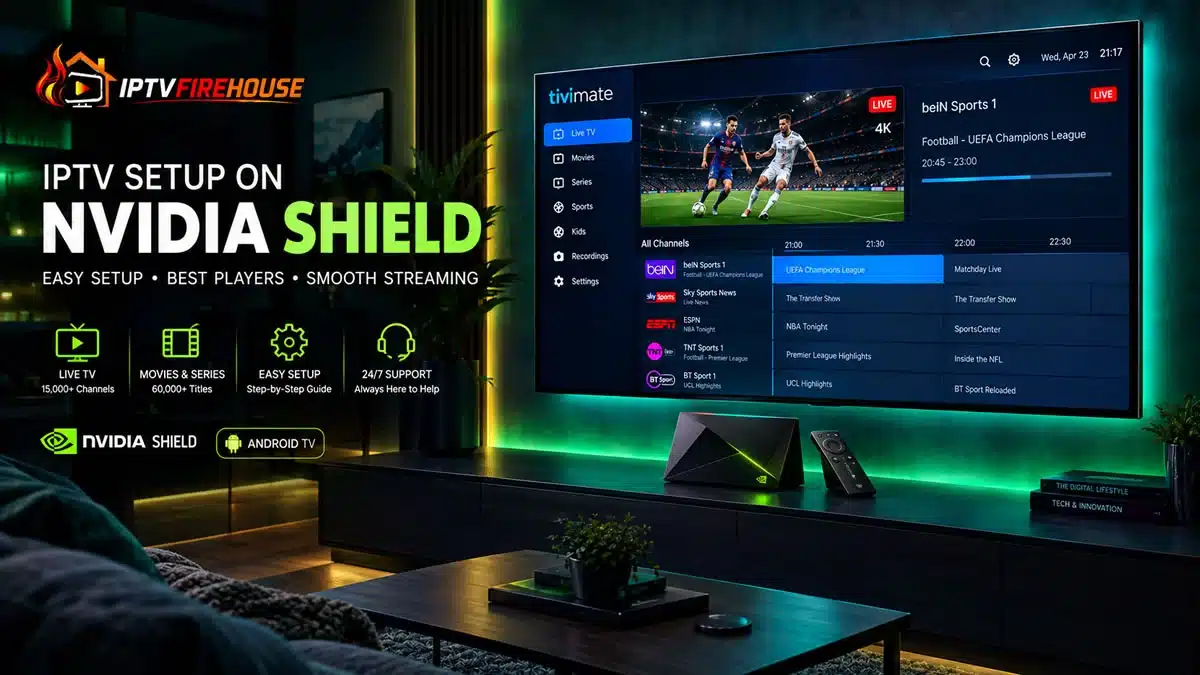
Configuring Internet Protocol Television (IPTV) on an Nvidia Shield TV or Nvidia Shield TV Pro unlocks an exceptional streaming experience. As the undisputed flagship device in the Android TV ecosystem, the Nvidia Shield TV combines high-performance hardware, dedicated AI-enhanced upscaling, and extensive audio passthrough support (Dolby Atmos and DTS:X). These specs allow it to render 4K live streams and high-bitrate Video-on-Demand (VOD) catalogs smoother than any standard streaming stick.
This comprehensive technical guide details how Android TV handles live IPTV pipelines, the best player apps available for the Shield, step-by-step installation options, and performance tuning strategies to eliminate buffering.
Technical Overview: How IPTV Works on Nvidia Shield
Unlike traditional broadcast television delivered via coaxial cable or satellite dishes, IPTV streams live media through broadband networks using Internet Protocol data packets.
When you launch an IPTV application on your Nvidia Shield, the player communicates with your service provider via an Xtream Codes API endpoint or an M3U playlist link. Once authenticated, video data packets (typically HLS or MPEG-TS formats) route directly to the Shield’s Nvidia Tegra X1+ processor. The Tegra hardware decodes the stream natively using standard ExoPlayer or VLC engines while applying AI-based real-time sharpening to upscale 1080p sports streams into crisp 4K outputs.
Hardware Specifications & Bandwidth Requirements
Ensure your hardware and network setup fulfill these recommended baseline requirements:
Nvidia Shield Hardware Requirements
- Device Model: Nvidia Shield TV Pro (3 GB RAM / 16 GB Flash) or Nvidia Shield TV (Tube).
- Operating System: SHIELD Experience 9.0+ (Android TV 11 architecture).
- Display Output: 4K HDR TV connected via HDMI 2.0b / 2.1 cable.
Bandwidth Guidelines for Shield Streaming
| Stream Quality | Minimum Download Speed | Connection Type |
| Standard Definition (SD) | 5 Mbps | Wi-Fi (2.4 GHz) or Ethernet |
| High Definition (1080p HD @ 60 FPS) | 20 Mbps | Wi-Fi 5 / 6 (5 GHz) |
| Ultra HD / 4K Live Streams | 35 Mbps – 50 Mbps | Gigabit Ethernet Cable |
Method 1: Installing TiviMate IPTV Player (Recommended Setup)
TiviMate is widely recognized as the premier IPTV player for Android TV and Nvidia Shield. It features an authentic cable-like Electronic Program Guide (EPG), picture-in-picture capabilities, and multi-view features.
Step-by-Step Instructions
- Open Google Play Store: From your Nvidia Shield home screen, navigate to the Apps tab and open the official Google Play Store.
- Search for TiviMate: Use the search bar or voice remote to search for
TiviMate IPTV Player. - Install and Launch: Select Install. Once complete, click Open to launch the player.
- Authenticate Service Credentials:
- Select Add Playlist.
- Click Xtream Codes API (recommended for better categorization over raw M3U URLs).
- Enter your Server URL, Username, and Password provided in your subscription email.
- Sync Channels & EPG: Click Next to allow TiviMate to index your channel package, movie databases, and TV listings grid.
Method 2: Installing IPTV Smarters Pro via Sideloading (Downloader App)
If an application is unavailable in your regional Play Store, sideloading via the Downloader app provides a fast secondary route.
- Install Downloader: Download the Downloader app by AFTVnews from the Google Play Store on your Shield.
- Enable Unknown Apps Permission:
- Go to Settings (Gear Icon) > Device Preferences > Security & Restrictions.
- Click Install Unknown Apps and select Downloader to Allowed.
- Fetch IPTV Smarters APK: Open Downloader, enter the direct numerical code or download link for the IPTV Smarters Pro APK, and click Go.
- Run Installation: Click Install when prompted by Android TV, then open the app and log in using your service credentials.
Top IPTV Players for Nvidia Shield (Android TV Comparison)
Because the Nvidia Shield runs native Android TV, it supports powerful hardware decoding engines.
| Player Application | Primary Strengths | UI Layout | Best Profile |
| TiviMate Companion | Best EPG navigation, multi-view (4 screens), recording capabilities | Modern Cable Grid | Power users wanting an elite TV experience |
| IPTV Smarters Pro | Native VOD layout, multi-user profiles, channel search | Category Dashboard | Families and users wanting an intuitive UI |
| Sparkle TV | Seamless DVR integration, clean timeshift capabilities | Sleek Grid | Viewers who record live broadcasts |
| VLC for Android | Free, decodes raw audio/video stream links easily | Minimalist Player | Quick link testing and debug setups |
Optimization Guide: Unleashing Shield AI Upscaling & Buffer Control
The Nvidia Shield includes unique hardware features that improve IPTV image quality and stream stability.
1. Enable AI-Enhanced Upscaling
Turn 720p and 1080p broadcast streams into crisp output on 4K displays:
- Go to Settings > Display & Sound > AI Upscaling on your Shield.
- Set the mode to AI-Enhanced.
- Set Detail Enhancement to Medium (prevents artificial noise in live sports).
2. Configure Custom DNS Resolvers
Eliminate ISP-level connection throttles and DNS routing delays:
- Go to Settings > Network & Internet.
- Select your active Ethernet or Wi-Fi connection.
- Scroll to IP Settings, change it to Static, keep your IP details, and set:
- DNS 1:
1.1.1.1(Cloudflare) - DNS 2:
8.8.8.8(Google)
- DNS 1:
Related Setup Walkthroughs & Resources
To configure IPTV services across complementary operating systems or devices, explore our companion guides:
- Set up desktop applications via our How to Install IPTV on Windows PC Guide.
- Configure macOS laptops using our IPTV Setup on MacBook Tutorial.
- Follow Fire OS installation workflows with our IPTV Firestick Setup Guide.
- Explore setup details for Samsung TV platforms via our How to Set Up IPTV on Samsung Smart TV Guide.
Frequently Asked Questions
Is the Nvidia Shield TV Pro better for IPTV than a Firestick?
Yes. The Nvidia Shield TV Pro features 3 GB of RAM, a Tegra X1+ processor, a native Gigabit Ethernet port, and hardware AI upscaling. This hardware profiles lower latency, faster channel zapping, and smoother 4K playback than standard streaming sticks.
Can I record live IPTV streams on Nvidia Shield?
Yes. Using players like TiviMate Premium or Sparkle TV, you can record live streams directly to the Shield’s local storage or to an attached USB 3.0 external hard drive or Network Attached Storage (NAS) drive.
Why does my IPTV stream buffer on Nvidia Shield?
Buffering is typically caused by ISP bandwidth throttling or Wi-Fi network congestion. Connecting your Shield via a direct Gigabit Ethernet cable, switching your device DNS to 1.1.1.1, and using hardware decoders within your player app resolves most buffering issues.
Summary
Setting up IPTV on an Nvidia Shield TV delivers unmatched streaming performance powered by Android TV architecture and Tegra GPU decoding. Pairing native applications like TiviMate with AI upscaling and optimized DNS settings guarantees an elite, buffer-free 4K viewing environment.