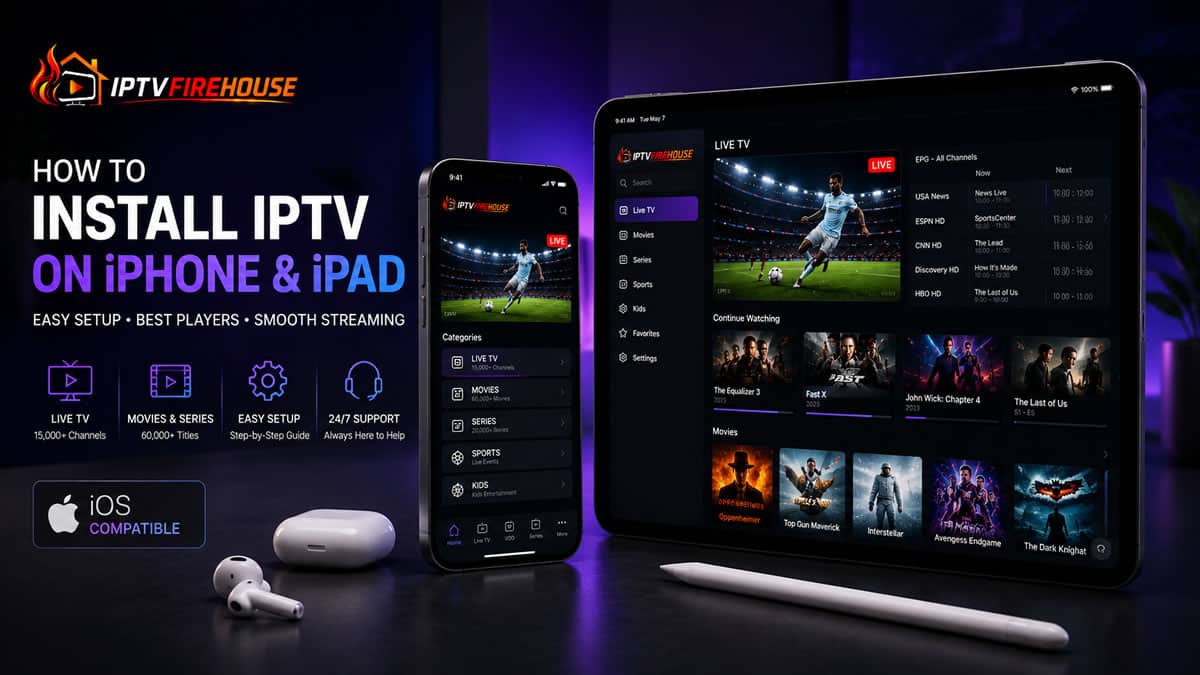
Setting up Internet Protocol Television (IPTV) directly on an iPhone or iPad turns your Apple mobile hardware into a portable streaming setup. Accessing live channels, regional sports broadcasts, and Video-on-Demand (VOD) catalogs across iOS and iPadOS provides significant mobile playback advantages—including Apple Silicon processing efficiency, OLED Super Retina display rendering, and multi-device iCloud synchronization.
This comprehensive guide details the technical workflows, top iOS media player applications, step-by-step setup methods, and network optimization steps needed to configure IPTV on iOS and iPadOS.
Technical Overview: How IPTV Operates on iOS & iPadOS
Rather than relying on legacy cable infrastructure, IPTV delivers live broadcasts via Internet Protocol (IP) networks using structured data packets.
When you open an IPTV player on an iPhone or iPad, the app connects to your service provider via an Xtream Codes API endpoint or an M3U playlist link. Once authenticated, incoming data streams (typically HLS or MPEG-TS formats) are passed to Apple’s native AVFoundation framework. This enables hardware-accelerated video decoding directly on the GPU, minimizing battery consumption and keeping thermals under control during mobile playback.
Hardware Specifications & Bandwidth Requirements
Before setting up your preferred IPTV application, verify that your iOS device and network connection satisfy these operational requirements:
Hardware & OS Compatibility
- Operating System: iOS 15.0 / iPadOS 15.0 or higher (iOS 17 or iOS 18 recommended).
- Supported Hardware: iPhone 8 or newer; iPad (6th Gen+), iPad mini (5th Gen+), iPad Air (3rd Gen+), or any iPad Pro model.
- Storage Requirement: Minimum 300 MB of available device storage for app installation and Electronic Program Guide (EPG) memory cache.
Bandwidth Guidelines for Mobile Streaming
| Stream Resolution | Minimum Download Speed | Recommended Connection Type |
| Standard Definition (SD) | 5 Mbps | 4G LTE or Wi-Fi (2.4 GHz) |
| High Definition (1080p HD @ 60 FPS) | 15 Mbps – 20 Mbps | 5G Network or Wi-Fi (5 GHz) |
| Ultra HD / 4K Live Streams | 25 Mbps – 50 Mbps | High-Speed 5G or Wi-Fi 6 / 6E |
Method 1: Installing via Official iOS App Store (GSE Smart IPTV / Smarters)
Downloading an approved client directly from the Apple App Store is the simplest and safest way to set up IPTV on an iPhone or iPad.
Step-by-Step Instructions
- Launch the App Store: Open the App Store on your iPhone or iPad home screen.
- Search for a Supported IPTV Player: Tap the Search tab and enter the name of a top-rated iOS player application:
- Smarters Player Lite
- GSE Smart IPTV
- IPTVX
- iPlayTV
- Download and Install: Tap GET and authenticate using Face ID, Touch ID, or your Apple ID passcode.
- Authenticate Account Credentials:
- Open the installed application.
- Tap Add Playlist or select Login with Xtream Codes API.
- Enter the Server URL, Username, and Password provided in your subscription email.
- Sync Content: Allow the application a few moments to download channel categories, VOD listings, and Electronic Program Guides (EPG).
Top 4 IPTV Players for iPhone & iPad (iOS Comparison)
Because the Apple App Store enforces strict developer guidelines, app feature sets and interfaces vary across player options.
| Player Application | Primary Strengths | UI / UX Layout | Best Profile |
| IPTVX | Apple-native design, iCloud cross-device sync, picture-in-picture mode | Apple TV Style | Power users seeking a polished, premium experience |
| Smarters Player Lite | Easy login form, distinct VOD categories, master channel search | Category Tiles | Beginners looking for an intuitive layout |
| GSE Smart IPTV | Broad format compatibility, advanced playlist management, remote portal link | Technical List | Advanced users managing complex playlists |
| iPlayTV | Automatic EPG matching, fast channel switching, clean grid menu | Dashboard Grid | Users who want an EPG guide layout |
Method 2: Setting Up IPTV via Web Player Portal (Safari Browser)
If you prefer not to install dedicated client software—or if an app is unavailable in your regional App Store—you can stream channels directly through Apple Safari using an IPTV Web Player portal.
- Open Safari: Launch the Safari web browser on your iPhone or iPad.
- Navigate to Web Player: Enter the web player URL provided by your IPTV operator into the address bar.
- Log In: Enter your Username and Password.
- Create a Home Screen Shortcut: Tap the Share button in Safari’s menu bar, scroll down, and select Add to Home Screen. This places a dedicated web app icon on your device for quick one-tap access.
Network Optimization & Fixing Buffering on iOS & iPadOS
If you experience video buffering, audio desync, or frame drops while streaming over cellular data or Wi-Fi, apply these mobile optimization fixes:
1. Update Wi-Fi & Cellular DNS Settings
Default telecom DNS routing can cause latency and ISP throttling during peak viewing times.
- Go to Settings > Wi-Fi on your iOS device.
- Tap the (i) Info icon next to your connected network.
- Scroll down and select Configure DNS, then change it from Automatic to Manual.
- Delete existing entries and add:
1.1.1.1(Cloudflare)8.8.8.8(Google)
- Tap Save.
2. Enable Hardware Background Refresh & Private Wi-Fi Adjustments
- Disable Private Wi-Fi Address: In your Wi-Fi network settings, toggle Private Wi-Fi Address OFF if your local router experiences routing conflicts.
- Enable Picture-in-Picture (PiP): Go to Settings > General > Picture in Picture and toggle Start PiP Automatically ON to keep watching your live stream while using other apps.
Related Setup Guides & Internal Resources
To review setup procedures on desktop systems or Smart TV platforms, explore our detailed companion guides:
- Follow macOS setup steps in our IPTV Setup on MacBook Guide.
- Configure Windows desktop software with our How to Install IPTV on Windows PC Guide.
- Setup Android TV platforms using our How to Install IPTV on Android TV Guide.
- Learn Fire OS installation steps via our IPTV Firestick Setup Guide.
Frequently Asked Questions
Can I install TiviMate directly on an iPhone or iPad?
No. TiviMate is engineered exclusively for Android TV and Fire OS architectures. On iOS and iPadOS, native player alternatives like IPTVX, Smarters Player Lite, or GSE Smart IPTV offer comparable performance and native Apple integration.
Is using an IPTV player app on an iPhone legal?
Yes. Downloading and using IPTV player apps from the official Apple App Store is entirely legal. Users are responsible for linking their own legally obtained M3U or Xtream API streaming service credentials.
How do I stop IPTV streams from buffering on 5G or Wi-Fi?
Buffering on mobile devices is usually caused by ISP throttling or DNS routing latency. Switching your iOS DNS settings to 1.1.1.1 (Cloudflare) or connecting through a reliable VPN helps stabilize stream delivery.
Summary
Setting up IPTV on an iPhone or iPad provides portable access to live TV networks, sporting events, and VOD libraries across Apple’s mobile ecosystem. Installing native applications like IPTVX or Smarters Player Lite and adjusting your network’s DNS configuration ensures high-definition, buffer-free playback wherever you stream.