
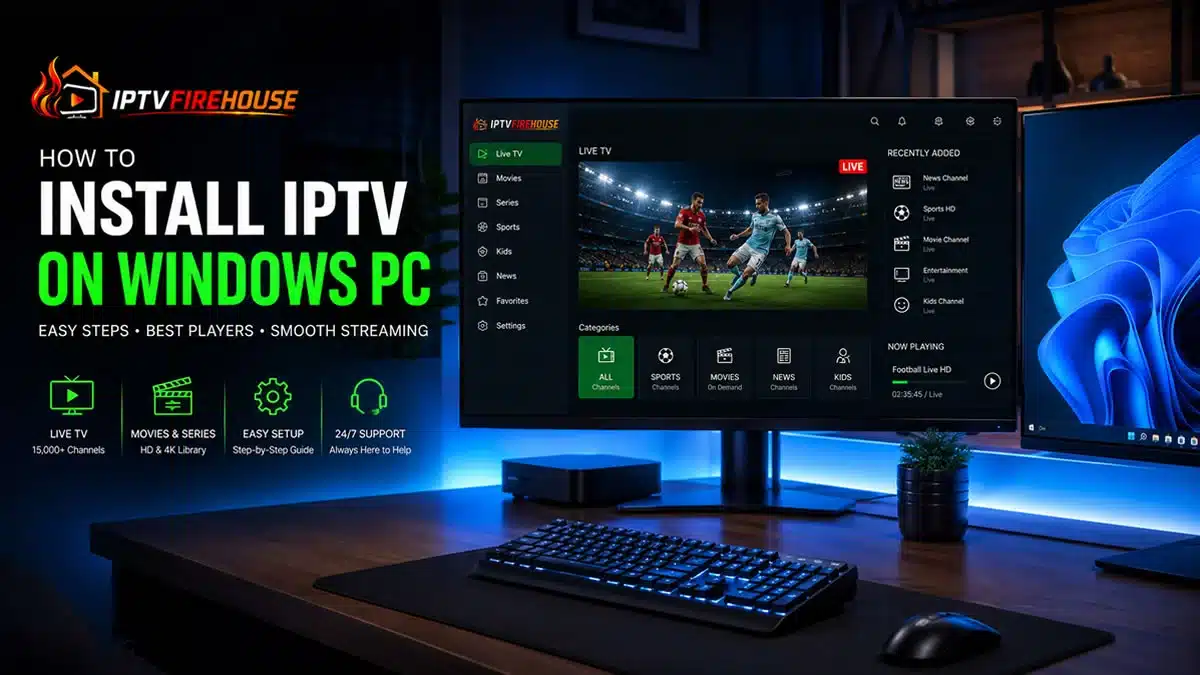
Configuring Internet Protocol Television (IPTV) directly on a Windows PC or laptop allows you to turn your computer into a full-featured streaming hub. Streaming live television, regional sports broadcasts, breaking news, and Video-on-Demand (VOD) catalogs through Windows offers significant hardware advantages—including higher processing power, dedicated graphics acceleration, and multi-monitor support—compared to low-power streaming sticks.
This comprehensive technical guide breaks down how Windows processes live IPTV streams, compares the best media players, and provides step-by-step installation instructions for setting up IPTV using native software or Android emulation.
Technical Overview: How IPTV Operates on Windows
Unlike traditional cable broadcasts that send signals over coaxial infrastructure, IPTV delivers continuous streams over broadband networks using Internet Protocol (IP) data packets.
When you launch an IPTV application on Windows, the software communicates with your provider via an Xtream Codes API endpoint or an M3U playlist URL. The server authenticates your credentials and routes digital video packets (HLS or MPEG-TS formats) directly to your PC’s video playback framework, utilizing Direct3D/DirectX acceleration to render high-definition streams with low CPU overhead.
System Requirements & Network Thresholds
Before installing an IPTV player on Windows 10 or Windows 11, verify that your computer meets these baseline specifications:
Baseline Hardware Specifications
- Operating System: Windows 10 (64-bit) or Windows 11.
- Processor: Intel Core i3 (8th Gen+) or AMD Ryzen 3 equivalent.
- RAM & Storage: 4 GB RAM minimum (8 GB recommended) and 500 MB available disk space.
- Graphics: Integrated Intel UHD Graphics, AMD Radeon, or dedicated NVIDIA GPU with DirectX 12 support.
Bandwidth Guidelines for Windows Streaming
| Resolution Quality | Minimum Download Speed | Recommended Network Type |
| Standard Definition (SD) | 5 Mbps | Wi-Fi (2.4 GHz) or Ethernet |
| High Definition (1080p HD @ 60 FPS) | 15 Mbps – 20 Mbps | Wi-Fi (5 GHz) |
| Ultra HD / 4K Live Streams | 25 Mbps – 50 Mbps | Direct Wired Ethernet Cable |
Method 1: Using VLC Media Player (Fastest & Lightest Setup)
VLC Media Player is a free, open-source media app that natively decodes live M3U playlists on Windows without requiring complex app setups.
Step-by-Step Instructions
- Download VLC: Visit
videolan.organd download the standard Windows installer. - Open Network Stream: Launch VLC, click Media in the top menu bar, and select Open Network Stream (or press
Ctrl + N). - Insert Stream URL: In the network URL field, paste the M3U Playlist URL provided in your subscription email.
- Play and Navigate Channels: Click Play. To open your channel list, press
Ctrl + Lto toggle the Playlist view, allowing you to search and select live TV channels.
Method 2: Installing IPTV Smarters Pro for Windows (Full Interactive Interface)
If you prefer a modern TV layout complete with category filters, Electronic Program Guides (EPG), and Video-on-Demand (VOD) libraries, installing IPTV Smarters Pro via its native Windows executable (.exe) is the ideal approach.
Step-by-Step Instructions
- Download the Windows Executable: Download the official IPTV Smarters Pro
.exesetup file for Windows. - Run Installer: Double-click the downloaded setup file and complete the installation wizard.
- Launch the Application: Open IPTV Smarters Pro from your desktop shortcut or Windows Start Menu.
- Authenticate via Xtream Codes API:
- Click Add New User.
- Select Login with Xtream Codes API.
- Enter an account name, your Username, Password, and the Server URL provided by your operator.
- Click Add User to download and index your channel listings and EPG data.
Method 3: Running TiviMate on Windows Using BlueStacks Emulator
Because TiviMate is designed for Android, running it on a PC requires an Android environment like BlueStacks.
- Install Emulator: Download and install BlueStacks 5 (64-bit) on your PC.
- Access Google Play: Open BlueStacks, launch the embedded Google Play Store, and sign in with your Google account.
- Install TiviMate: Search for
TiviMate IPTV Player, click Install, and launch the app once complete. - Link Subscription: Choose Add Playlist > Xtream Codes API, enter your credentials, and enjoy full TiviMate interface capabilities on your PC display.
Comparison of Top Windows IPTV Players
| Player Application | Primary Strengths | UI Layout | Best For |
| VLC Media Player | Zero installation overhead, lightweight, supports raw streams | Standard Media Player | Quick stream testing & minimal RAM usage |
| IPTV Smarters Pro (PC) | Native Windows app, complete VOD layout, multi-user support | Modern Dashboard | Complete desktop media hub experience |
| TiviMate (via Emulator) | Advanced EPG grid, multi-screen view, premium channel management | TV-Style Grid | Power users wanting TV-grade interface |
Troubleshooting & Network Optimization for Windows
If you encounter video buffering, frame drops, or audio desync while streaming live TV on Windows, implement these optimization fixes:
1. Enable Hardware Acceleration in VLC / Smarters
Software-only video decoding puts unnecessary strain on your computer’s CPU.
- In VLC, go to Tools > Preferences > Input / Codecs. Change Hardware-accelerated decoding from Disable to Automatic or DirectX Video Acceleration (DXVA 2.0).
- In IPTV Smarters Pro, go to Settings > Player Selection / Player Settings and switch the decoder framework to Hardware Decoder.
2. Change Windows DNS Settings
Bypass local ISP routing throttles by switching to public DNS resolvers.
- Open Windows Settings > Network & internet > Wi-Fi / Ethernet.
- Click Edit next to DNS server assignment, change it to Manual, toggle IPv4 to ON, and set:
- Preferred DNS:
1.1.1.1(Cloudflare) - Alternate DNS:
8.8.8.8(Google)
- Preferred DNS:
Related Setup Walkthroughs & Resources
To configure additional devices or explore regional streaming lineups, view our companion guides:
- Configure Android devices using our How to Install IPTV on Android TV Guide.
- Follow Samsung Tizen workflows in our How to Set Up IPTV on Samsung Smart TV Guide.
- Explore LG webOS setups with our IPTV Setup on LG Smart TV Tutorial.
- Learn Fire OS installation steps using our IPTV Firestick Setup Guide.
Frequently Asked Questions
Can I run IPTV on Windows without installing additional software?
Yes. You can use native media players like VLC or rely on browser-based Web Player portals provided by your IPTV operator to stream channels directly in Google Chrome, Microsoft Edge, or Mozilla Firefox.
Is using an IPTV player on a Windows PC legal?
Yes. Player software (such as VLC, IPTV Smarters, or TiviMate) is entirely legal. Users are responsible for supplying their own legal subscription content or playlist feeds.
Why is TiviMate not natively available for Windows?
TiviMate is developed specifically for Android TV and Fire OS architectures. However, it runs seamlessly on Windows PCs using Android emulators like BlueStacks or Windows Subsystem for Android (WSA).
Summary
Installing IPTV on a Windows PC provides a high-performance streaming environment with flexible player options, fast navigation, and multi-monitor capability. Whether you choose lightweight players like VLC or full-featured software like IPTV Smarters Pro, optimizing your software decoders and network DNS ensures a smooth, buffer-free viewing experience on your PC.
[…] Configure desktop software with our How to Install IPTV on Windows PC Guide. […]
[…] Configure Windows setups with our How to Install IPTV on Windows PC Guide. […]