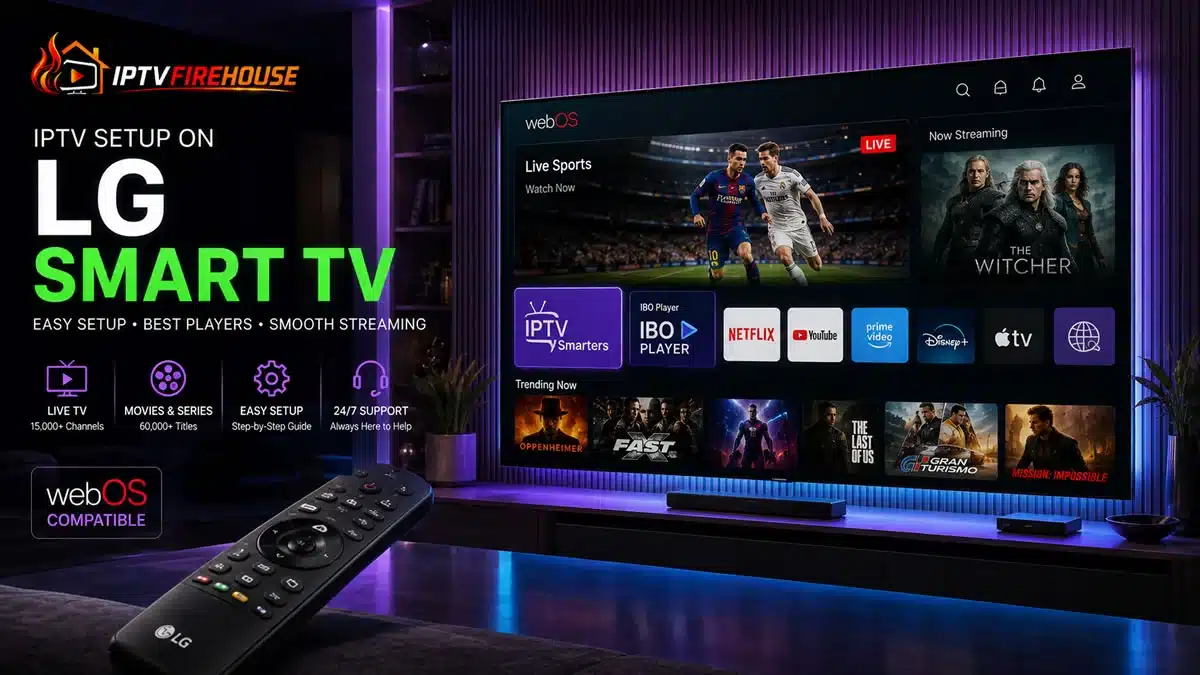
Configuring Internet Protocol Television (IPTV) directly on an LG Smart TV gives you seamless access to live television, regional sports networks, breaking news, and extensive Video-on-Demand (VOD) catalogs—all without cluttering your entertainment center with external set-top boxes or streaming sticks. Because LG Smart TVs operate on LG’s proprietary webOS operating system, installation relies on native webOS media player applications available in the official LG Content Store.
This technical, step-by-step tutorial outlines how webOS processes IPTV streams, the best applications available, step-by-step installation methods, online MAC address activation, and network optimization techniques for buffer-free viewing.
Technical Overview: How IPTV Works on LG webOS
Unlike legacy cable systems that send television signals over coaxial infrastructure, IPTV delivers continuous streams over broadband IP networks using Internet Protocol data packets.
When you launch an IPTV player application on an LG Smart TV, the app communicates with your service provider via an Xtream Codes API endpoint or an M3U playlist URL. The server authenticates your account credentials and routes video packets (HLS or MPEG-TS formats) directly to your TV’s built-in webOS media engine for smooth, real-time decoding.
Hardware Requirements & Bandwidth Thresholds
Before beginning the installation process, ensure your hardware setup and home broadband network meet these basic specifications:
Hardware Specifications
- Operating System: LG webOS 3.0 or higher (2017+ models recommended for optimal performance).
- Storage Capacity: Minimum 200 MB available onboard storage for app installation and EPG caching.
- Control: LG Magic Remote or standard LG remote control.
Bandwidth Guidelines for Buffer-Free Playback
| Resolution Quality | Minimum Download Speed | Recommended Connection Type |
| Standard Definition (SD) | 5 Mbps | Wi-Fi (2.4 GHz) or Ethernet |
| High Definition (1080p HD @ 60 FPS) | 15 Mbps – 20 Mbps | Wi-Fi (5 GHz) |
| Ultra HD / 4K Live Streams | 25 Mbps – 50 Mbps | Direct Wired Ethernet Cable |
Method 1: Installing via Official LG Content Store
The easiest and safest way to set up IPTV on an LG Smart TV is downloading an approved player app directly from the LG Content Store (App Store).
Step-by-Step Instructions
- Power On & Connect: Turn on your LG Smart TV and verify it has an active internet connection.
- Access the LG Content Store: Press the Home button on your LG Magic Remote, navigate the webOS dashboard ribbon, and click on LG Content Store (or Apps).
- Search for an IPTV Player: Click the Search icon (magnifying glass) at the top right corner and enter one of these recommended webOS applications:
- IPTV Smarters Pro (or Smarters Player Lite)
- IBO Player
- SS IPTV
- Smart IPTV (SIPTV)
- Install and Launch: Click Install on the application detail page. Once installed, launch the application directly from your home menu.
- Authenticate Credentials: Select Login with Xtream Codes API, then input the Server URL, Username, and Password provided in your subscription email.
Top IPTV Players for LG Smart TV (webOS Comparison)
Because LG webOS uses a proprietary architecture, application features and navigation layouts differ from Android TV or Fire OS platforms.
| Player Application | Primary Strengths | Activation Model | Best For |
| IPTV Smarters Pro | Native VOD categorization, clean TV dashboard, search functionality | Completely Free | Casual users wanting an easy setup |
| IBO Player | Ultra-fast channel zapping, smooth 4K/HDR rendering, low RAM usage | 7-Day Free Trial (One-Time Fee) | Power users prioritizing speed |
| SS IPTV | Completely free, built-in M3U upload portal, simple list navigation | Completely Free | Legacy LG models & budget setups |
| Smart IPTV (SIPTV) | Lightweight, reliable EPG rendering, direct MAC address linking | 7-Day Free Trial (One-Time Fee) | Traditional grid-style interface |
Step-by-Step Setup Using MAC Address Activation (IBO Player / Smart IPTV)
If you are using apps like IBO Player or Smart IPTV, credential input is managed via a web portal using your TV’s unique MAC address rather than typing long URLs on screen.
- Retrieve TV MAC Address: Launch the player application (e.g., IBO Player or Smart IPTV) on your LG TV. The welcome screen will display your TV’s MAC Address and Device Key.
- Open the Web Management Portal: On a browser using your phone or computer, go to the player’s official management website (e.g.,
[iboplayer.com/manage](https://iboplayer.com/manage)orsiptv.app/mylist). - Upload Provider Credentials: Type in your MAC Address and Device Key, then paste your M3U Playlist URL or Xtream Codes API details into the configuration form.
- Save and Restart: Save your settings on the portal, then restart the application on your LG TV to sync live TV categories and EPG guides.
Network Optimization & Fixing Buffering on LG webOS
If you experience playback freezes, channel loading delays, or audio desync on webOS, implement these network optimization steps:
1. Update Network DNS Settings
Your ISP’s default DNS resolvers can cause network congestion and video stream throttling during peak hours.
- Go to Settings > All Settings > Network on your LG TV.
- Select Wi-Fi Connection or Wired Connection (Ethernet) depending on your network.
- Scroll down to Edit, uncheck Set Automatically, and change the DNS Server to
1.1.1.1(Cloudflare) or8.8.8.8(Google).
2. Clear Application Memory & Cache
- Go to Settings > General > OLED Care / Device Care > Memory Management.
- Click Clear Memory to close background background processes and free up system RAM for smooth 4K stream buffers.
Related Setup Walkthroughs & Resources
To explore multi-platform setups or regional streaming configurations, consult our comprehensive companion guides:
- Configure Tizen OS using our How to Set Up IPTV on Samsung Smart TV Guide.
- Follow Android TV installation steps in our How to Install IPTV on Android TV Guide.
- Learn Fire OS setup workflows with our IPTV Firestick Setup Guide.
- Review North American channel packages in our Cheap IPTV USA Guide.
Frequently Asked Questions
Can I install TiviMate directly on an LG Smart TV?
No. TiviMate is built exclusively for Android TV and Fire OS operating systems. On LG webOS Smart TVs, use native player alternatives like IPTV Smarters Pro, IBO Player, or SS IPTV.
Why can’t I find IPTV Smarters in the LG Content Store?
App availability in the LG Content Store can vary based on your TV’s regional settings. If an app is missing, go to Settings > General > System > Location > LG Services Country and change your region to the United States or United Kingdom to unlock the full app store catalog.
Is a wired Ethernet connection necessary for 4K streaming on LG TV?
While high-speed 5 GHz Wi-Fi works well, using a direct Ethernet cable guarantees a continuous, unthrottled bandwidth connection, preventing wireless interference during live 4K sports broadcasts.
Summary
Setting up IPTV on an LG Smart TV provides immediate access to live television, PPV sports events, and VOD libraries directly through webOS. By downloading native players like IPTV Smarters Pro or IBO Player and setting up custom DNS routing, you can enjoy high-definition streaming on your LG Smart TV without purchasing external devices.