
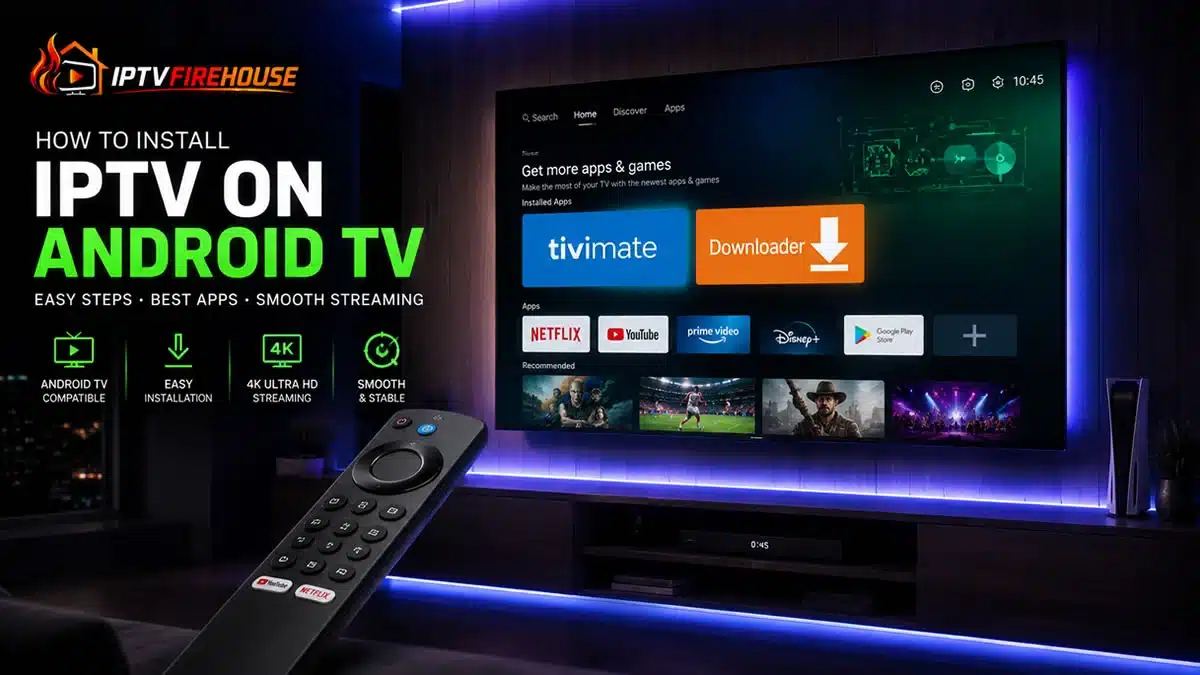
The transition from traditional cable boxes to broadband-based streaming on Android TV and Google TV platforms continues to accelerate. Internet Protocol Television (IPTV) routes live broadcasts, regional networks, and Video-on-Demand (VOD) catalogs directly through your home broadband network using Internet Protocol (IP) architecture.
This comprehensive technical guide details the installation workflows, hardware requirements, player configurations, and network optimization steps required to set up IPTV on Android TV.
Technical Overview: How IPTV Functions on Android TV
Unlike standard OTT (Over-The-Top) apps that stream static video files over public internet routes, live IPTV relies on real-time data ingestion and structured stream protocol decoding.
When you request a channel using an Android TV player app, the client initiates a request via Xtream Codes API or M3U playlist URLs. The edge Content Delivery Network (CDN) authenticates the connection and delivers HLS (HTTP Live Streaming) or MPEG-TS data packets directly to your device’s memory buffer. The Android TV hardware decoder processes the video stream (using H.264, H.265, or AV1 codecs) to yield continuous, high-definition playback.
System Requirements & Pre-Installation Checklist
Before configuring your IPTV player on Android TV, verify that your home network and hardware meet these baseline specifications:
Hardware Specifications
- Operating System: Android TV OS 9.0 or higher (including Google TV).
- RAM / Storage: Minimum 2 GB RAM and 1 GB available storage.
- Processor: Quad-Core 1.5 GHz or better for smooth 4K/HDR rendering.
Bandwidth & Network Throughput
| Quality Tier | Minimum Downstream Speed | Recommended Network Type |
| Standard Definition (SD) | 5 Mbps | Wi-Fi (2.4 GHz) or Ethernet |
| High Definition (1080p HD @ 60 FPS) | 15 Mbps – 20 Mbps | Wi-Fi (5 GHz) / Dual-Band |
| Ultra HD / 4K Live Streams | 25 Mbps – 50 Mbps | Wired Ethernet / Wi-Fi 6 |
Method 1: Installing via Official Google Play Store (Recommended)
Installing an IPTV player app directly from the Google Play Store is the straightforward deployment method for Android TV devices.
Step-by-Step Instructions
- Launch Google Play Store: Open the Play Store from your Android TV app drawer or home dashboard.
- Search for a Supported IPTV Player: Enter the name of a reliable player application in the search field (e.g., TiviMate IPTV Player, IPTV Smarters Pro, or XCIPTV).
- Install the Application: Select the official app from the search results and click Install.
- Open & Configure Credentials:
- Open the app upon installation.
- Select Add Playlist or Login with Xtream Codes API.
- Input your Server URL, Username, and Password provided in your service email.
- Allow the app to index live channels, VOD catalogs, and Electronic Program Guides (EPG).
Method 2: Sideloading IPTV Apps Using Downloader Utility
Certain specialized IPTV player applications or customized provider portals are not hosted on the primary Google Play Store. In these cases, you can sideload the APK file using the standard Downloader utility.
Step 1: Enable Developer Permissions
- Go to Settings > Device Preferences > About on your Android TV dashboard.
- Scroll down to Build and click the center Select button 7 times until the screen confirms Developer Options are enabled.
- Return to Settings > Security & Restrictions > Unknown Sources (or Install Unknown Apps).
- Locate the Downloader app (once downloaded in Step 2) and toggle permissions to ON.
Step 2: Deploy the Downloader App
- Open the Google Play Store on your Android TV.
- Search for
Downloader(by AFTVnews) and click Install. - Launch Downloader and grant it permission to access device storage.
Step 3: Download & Sideload the IPTV Player APK
- In the Downloader URL field, enter the direct numerical code or download link for your target player application.
- Click Go to retrieve the installation file.
- Once the download finishes, click Install on the system prompt.
- After installation, delete the original
.apkfile to preserve device RAM and internal storage.
Top 3 IPTV Player Applications for Android TV (2026 Comparison)
Selecting the correct client application ensures stable stream decoding, fast interface navigation, and proper EPG integration.
| IPTV Player App | Key Strengths | UI Layout | Best Used For |
| TiviMate IPTV Player | Cable-like EPG grid, catch-up support, multi-screen, custom category management | Modern TV Grid | Premium TV & Large Playlists |
| IPTV Smarters Pro | Cross-platform compatibility, master search, multi-user accounts | Category Tiles | Multi-Device & Mobile Sync |
| XCIPTV Player | Built-in ExoPlayer & VLC integration, hardware decoding support, light storage footprint | Dashboard Style | Entry-Level Hardware |
Configuring Xtream Codes API & Electronic Program Guide (EPG)
To link your player application to your IPTV subscription backend, use the Xtream Codes API protocol over raw M3U files. The Xtream Codes endpoint delivers dynamic channel indexing and lower memory overhead.
- Open your player app’s setting menu and select Add User / Xtream Codes API.
- Enter your account details exactly as provided by your service operator:
- Server URL: Includes protocol, domain, and port number (e.g.,
[http://example-server.com:8080](http://example-server.com:8080)). - Username & Password: Case-sensitive login tokens.
- Server URL: Includes protocol, domain, and port number (e.g.,
- Enable Sync EPG on Startup inside the app settings to fetch real-time TV guide listings automatically.
Troubleshooting Common IPTV Performance Issues
1. Persistent Buffering or Lag During Live Sports
- Change DNS Settings: Go to Android TV Settings > Network & Internet > IP Settings. Switch from DHCP to Static, and set Primary DNS to Cloudflare (
1.1.1.1) or Google (8.8.8.8) to bypass ISP routing hops. - Switch Audio/Video Decoders: Navigate to your player app settings (Settings > Playback) and toggle video decoding from Software to Hardware (HW/HW+).
2. Stream Freezing or Audio Out of Sync
- Clear local cache by going to Android TV Settings > Apps > See All Apps > [Your IPTV Player] > Clear Cache.
- Restart your home network router to purge stale network buffers.
Related Guides & Internal Resources
For device-specific configurations and optimization strategies, explore our detailed companion guides:
- Learn how to set up your account on Fire OS devices with our IPTV Firestick Setup Guide.
- Explore affordable North American streaming packages in our Cheap IPTV USA Guide.
- View streaming options for Oceania users in the IPTV Australia Guide.
- Review dedicated live channels and sports options in our Premium IPTV for USA Channels Guide.
Frequently Asked Questions
Is setting up an IPTV player on Android TV legal?
Installing IPTV player apps (such as TiviMate or IPTV Smarters Pro) from official app stores is fully legal worldwide. Players are media utilities; end users are responsible for linking lawful stream sources.
Why is an Xtream Codes API connection preferred over M3U links?
Xtream Codes API uses dynamic JSON queries to load channel categories, VOD sections, and EPG data on demand, reducing RAM strain compared to downloading monolithic M3U text files.
Do I need a VPN to stream live IPTV on Android TV?
Using a Virtual Private Network (VPN) is optional but recommended. A VPN helps prevent ISP bandwidth throttling during high-demand live sports broadcasts and protects network traffic privacy.
Summary
Installing IPTV on Android TV gives cord-cutters direct access to high-definition live television, regional sports, and VOD libraries without hardware rentals. By using dedicated media players like TiviMate or IPTV Smarters Pro and configuring your network settings, you can establish a stable, high-performance entertainment system on your home screens.
[…] Learn Android TV steps in our How to Install IPTV on Android TV Guide. […]